The two steps to setting up the handheld system..
(1). Design tables in a Microsoft Access Database
The data 'fields' that you need to collect data can be divided into two basic tables, Static and History. Static information contains the address, territory and other 'fixed' information. If the 'rep' changes any of the static fields then the table will be updated. History information is always added to the history table so that on each visit the details are stored. In addition, other tables can be designed to hold product distribution values. All tables are related by mandatory fields at the start of each table including, account-number and last-visit-date.
(2). Design the handheld PC screens
An application allows all aspects of the handheld PC to be designed. All fields can be 'dragged' onto the screens. The record can be shown on up to 10 pages, each page having a 'tab' which can be named. The fields can be from the 'static', 'history' or distribution tables in any order. All texts are programmable so that foreign language versions can be set up.
Screen Shots
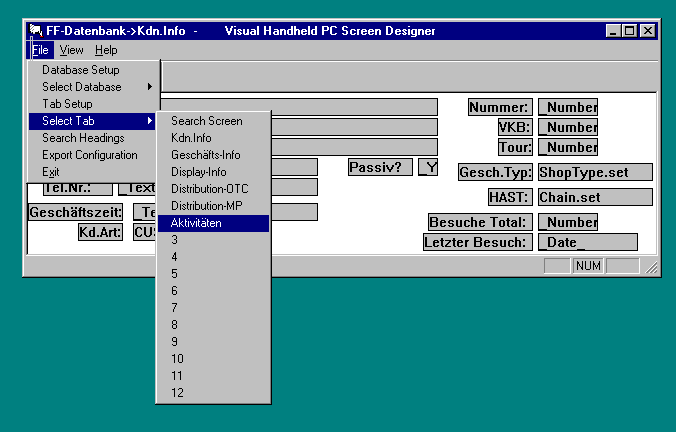
The screen shot below shows the screen designer. The example shows how the record 'tabs' are labeled (in this case in German):-
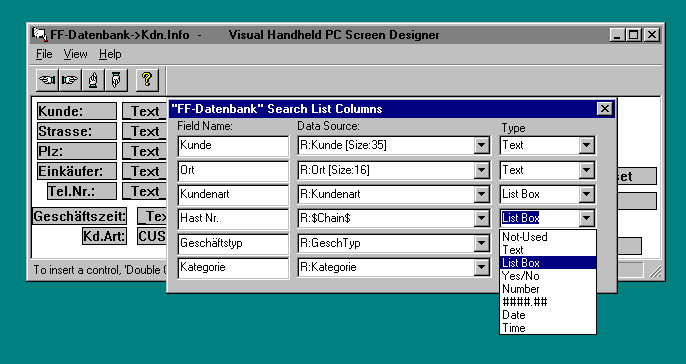
The screen shot below shows how the search list on the handheld PC can be programmed to show the fields that you want:
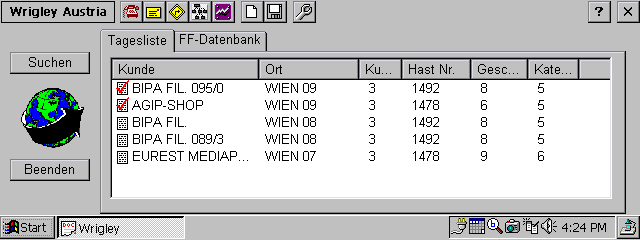
The handheld PC shows the main screen as follows. The buttons on the left are 'search' and 'exit'. The two tabs show a 'today list' and the 'search list'. After searching you can drag records into the globe to move the record into the 'today list'.
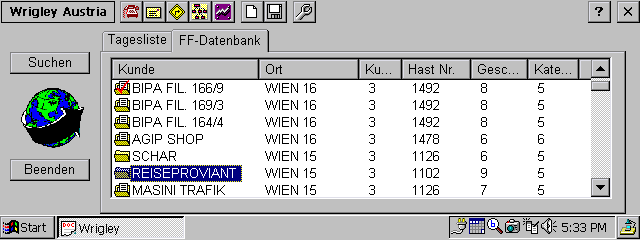
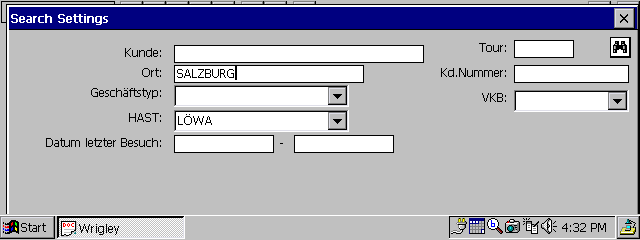
The search screen is set up with the screen designer application. The fields can be text, numeric, drop-down lists or date/time.
Records in the today list show a check symbol if the record has been updated. To open a record tap on the screen.
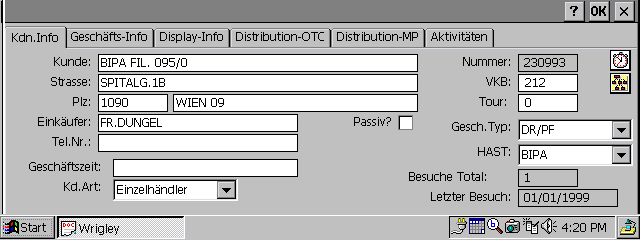
The screen below shows a record. The clock on the right is tapped if the outlet is visited to set the time and date of the visit. The record shows text fields, check boxes, numeric, date,and drop-down lists.
Tapping the tab on the top line opens the page.
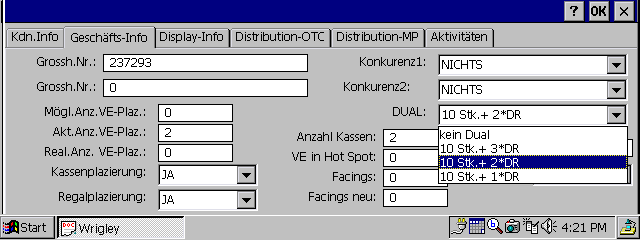
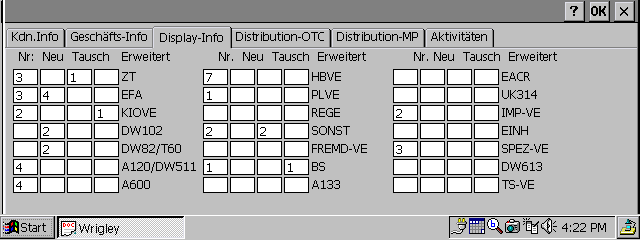
Distribution tables can include numbers, or check boxes:
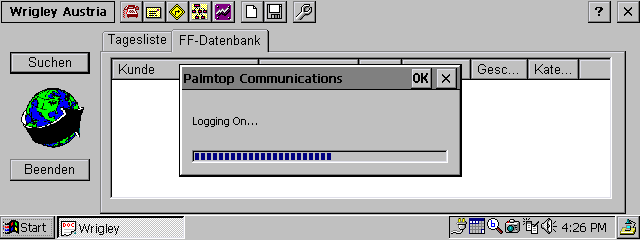
The system includes communications (by tapping the 'phone' icon on the top line of the screeb below). Records which have been updated are transffered. Any changes in the screen layout design are sent to the handheld PC's so that changes can be made at head office without the handheld PC's being sent in. The head office system can send records out as well as receive records and update the access tables.